
How to Install a Smart Thermostat Without Losing Your Cool
Is Installing a Smart Thermostat Really a DIY Job?
A smart thermostat installation guide is exactly what you need if you’re staring at a box on your counter wondering why you ever bought the thing. Good news: you don’t need to be an electrician to get it done.
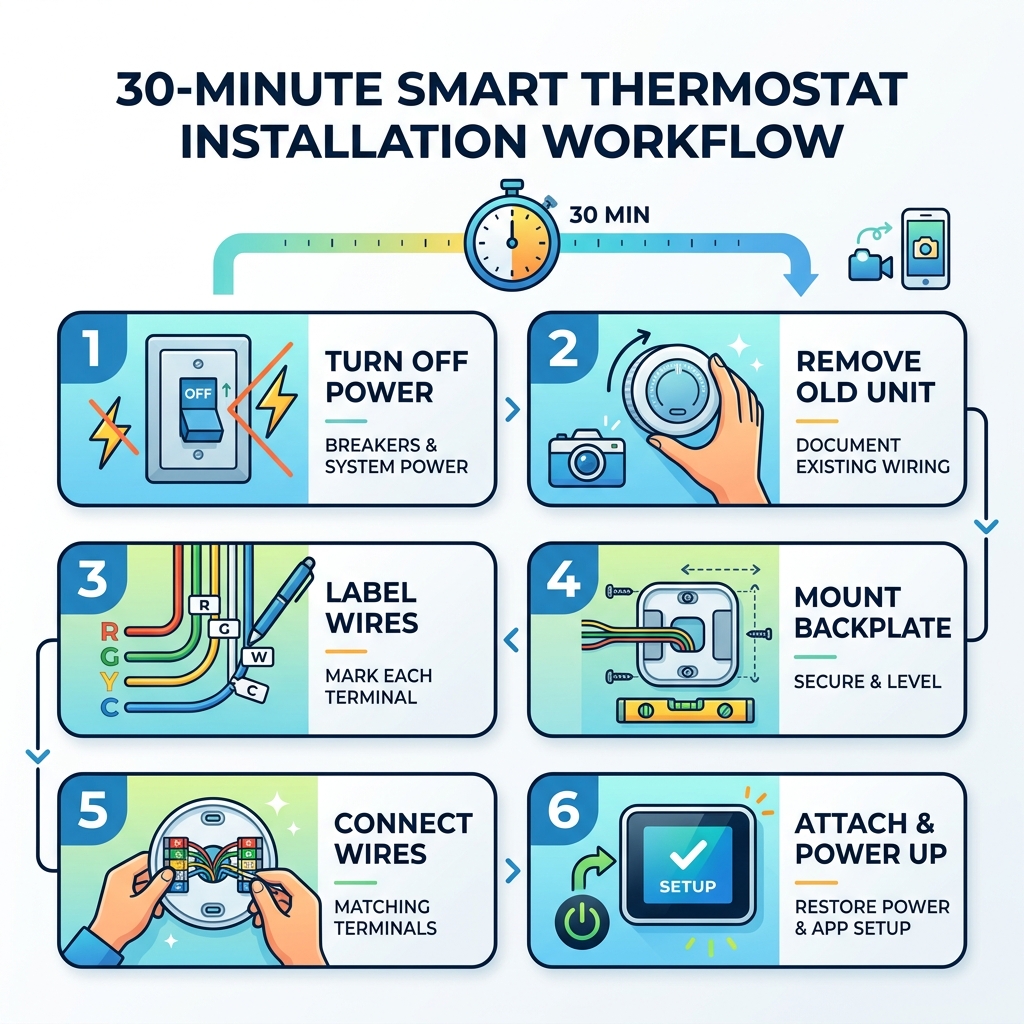
Here’s the quick version of how to install a smart thermostat:
- Turn off power to your HVAC system at the breaker panel
- Remove the old thermostat and photograph the existing wiring
- Label each wire by its terminal (R, G, Y, W, C) before disconnecting
- Mount the new backplate, pull wires through, and secure to the wall
- Connect wires to the matching terminals on the new thermostat
- Attach the faceplate, restore power, and follow the app setup
Most homeowners finish the job in 20 to 60 minutes, depending on their experience level and which brand they’re installing. Google Nest typically takes 20-30 minutes. Ecobee usually runs about 45 minutes.
The process sounds intimidating. Wires, terminals, drill bits — it’s a lot of new vocabulary at once. But the actual work is straightforward if you go step by step.
The two things that trip people up most are:
- Compatibility — not all HVAC systems work with all smart thermostats
- The C-wire — some older homes don’t have one, and that changes your options
We’ll walk you through all of it below, including what to do when things don’t go perfectly.
Introduction and Pre-Installation Safety
Starting a DIY project can be a mix of excitement and “what have I done?” dread. But when it comes to home energy efficiency, few upgrades offer a better return on investment than a smart thermostat. By automating your heating and cooling based on your schedule and even your location, these devices can significantly slash your monthly utility bills.
Before we grab the screwdriver, we need to talk about safety. This isn’t just about protecting the device; it’s about protecting you and your home’s expensive HVAC system. Modern smart thermostats are essentially small computers. They boot up just like your laptop and require a steady, correct flow of power to function.
Essential Tools for Your Smart Thermostat Installation Guide
You won’t need a heavy-duty construction crane for this, but having the right tools gathered beforehand prevents that frustrated mid-project sprint to the hardware store. Here is what we recommend having on hand:
- Screwdriver: Usually a Phillips head and a small flathead.
- Power drill & 3/16” drill bit: For mounting the new backplate if the old holes don’t line up.
- Level: Many smart thermostats have a tiny bubble level built into the backplate, but having your own ensures a professional look.
- Wire labels: Most manufacturers include these in the box, but masking tape and a pen work in a pinch.
- Smartphone: Essential for taking reference photos and downloading the setup app.
- Pencil: To mark your drill holes.
- Wire strippers (optional): Only needed if your existing wires are corroded or broken.
Pre-Installation: Compatibility and Safety First
Before you even break the seal on that shiny new box, we must ensure your home is ready for it. Not every thermostat is a universal fit. In fact, opening the packaging before checking compatibility is a common mistake that can lead to “non-returnable” headaches.
Checking HVAC System Compatibility
Most modern homes use low-voltage systems (24V), which are perfectly compatible with brands like Nest, Ecobee, and Honeywell. However, there are deal-breakers you need to look for:
- High-Voltage Warning: If your old thermostat is labeled 120V or 240V, or if you see thick wires joined by wire nuts, stop immediately. These are “line voltage” systems (common in electric baseboard heaters) and will fry a standard smart thermostat. You can check the U.S. Department of Energy website for more details on different thermostat types.
- Stranded Wires: Smart thermostats require solid copper wires. If your wires look like braided hair (stranded), they are incompatible.
- Proprietary Systems: Some high-end HVAC systems use “communicating” thermostats that only work with the manufacturer’s specific model.
We highly recommend using the manufacturer’s online compatibility tools before starting. These tools usually ask you to list which wire letters are currently connected to your old unit to give you a definitive “yes” or “no.”
Safety Precautions: Once compatibility is confirmed, go to your circuit breaker and switch off the power to your HVAC system. Some homes have multiple breakers for heating and cooling. To verify the power is truly off, try to turn on the heat or AC at the old thermostat. If nothing happens after five minutes, you are safe to proceed.
Removing the Old Unit and Decoding the Wiring
Now for the point of no return. Gently pull the faceplate of your old thermostat off the wall. Some pop right off; others might have a hidden screw or two. Don’t force it—if it’s stuck, check the edges for fasteners.
Wire Documentation and Labeling
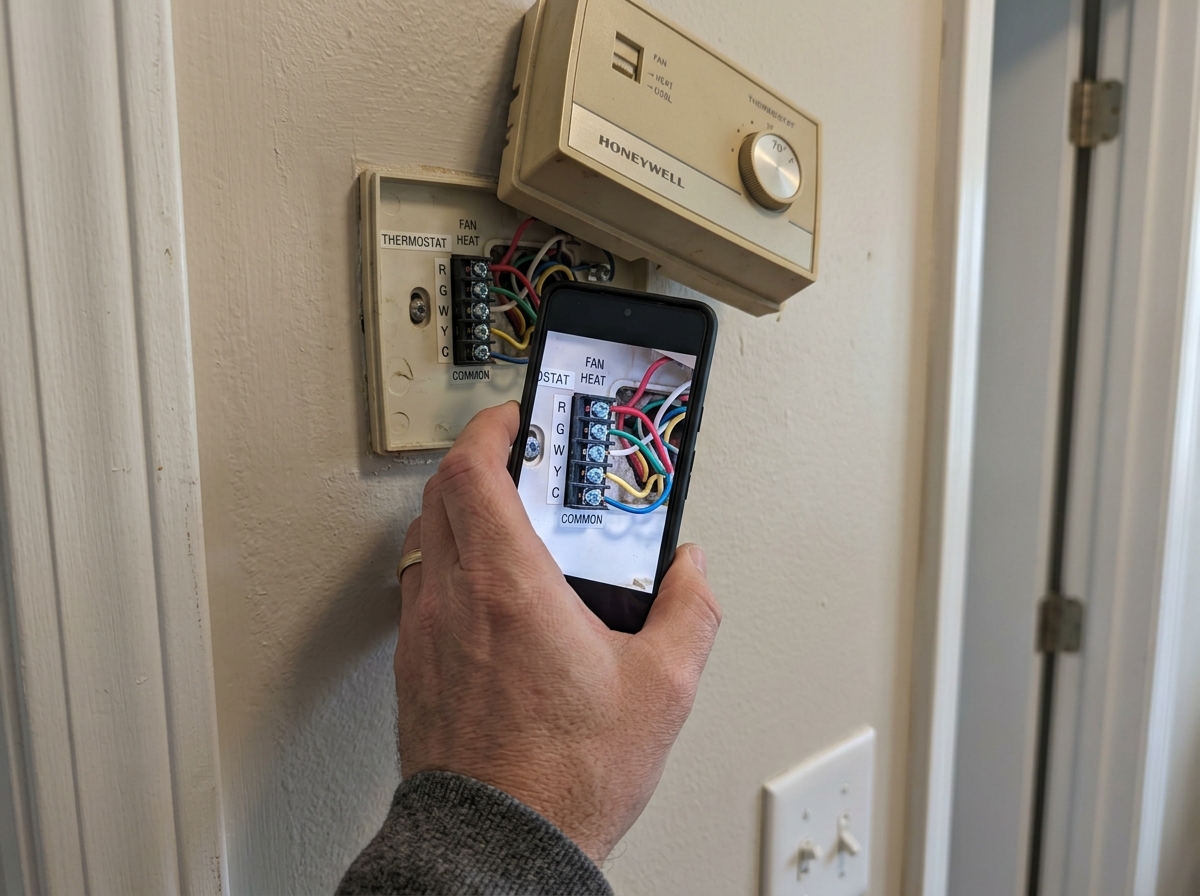
Once the wires are exposed, stop and take a photo. This is the most critical step in any smart thermostat installation guide. That photo is your “get out of jail free” card if you get confused later.
Different brands use different colors for wires, so never assume that a “red” wire goes to the “R” terminal just because of the color. Always follow the letters on the old backplate. Use the stickers provided with your new device to label each wire according to the terminal it’s currently plugged into.
If you are upgrading from a programmable model, you might find our definitive guide to home energy efficiency helpful for understanding how these systems have evolved.
One final tip: keep an eye out for jumper wires. These are short wires that connect two terminals (like Rh and Rc) on old thermostats. Most smart thermostats don’t need these because they handle the connection internally. You can usually set these aside.
Understanding the C-Wire and Power Requirements
The C-wire (Common wire) is the unsung hero of the smart home. While other wires tell your furnace to turn on or off, the C-wire provides a constant return path for electricity, allowing your thermostat’s Wi-Fi and screen to stay powered 24/7.
If you pull off your old thermostat and see a wire labeled “C,” congratulations—you’ve won the installation lottery! If not, don’t panic. You have options:
- Power Extender Kit (PEK): Many Ecobee models include this. It’s a small device you install at your furnace that “creates” a C-wire connection using existing wires.
- C-Wire Adapter: Google Nest and Honeywell offer similar external power adapters.
- Add-a-wire adapters: Third-party solutions are available if you’re comfortable working inside your HVAC control board.
If you find yourself staring at a mess of wires and no C-wire, and the idea of opening your furnace makes you sweat, this is the perfect time to call a pro.
Step-by-Step Smart Thermostat Installation Guide
With the old unit gone and wires labeled, it’s time to mount the new hardware.
- Mount the Backplate: Pull the wires through the center hole of the new backplate. Hold it against the wall and use your level to make sure it’s straight. Mark the screw holes with a pencil.
- Drill and Anchor: If the holes don’t match your old ones, drill new ones using a 3/16” bit and tap in the provided drywall anchors.
- Secure the Plate: Screw the backplate into the anchors. Be careful not to over-tighten if you’re using a power drill—many experts recommend using a hand screwdriver here to avoid cracking the plastic.
- Insert the Wires: This is where your labels and photo come in. Press the terminal lever down and slide the wire into the corresponding slot.
Wiring Terminal Comparison Table
| Terminal | Function | Common Color (Reference Only!) |
|---|---|---|
| R / Rh / Rc | 24V Power | Red |
| C | Common (Continuous Power) | Blue / Black |
| W / W1 | Heating | White |
| Y / Y1 | Cooling | Yellow |
| G | Fan | Green |
| O/B | Heat Pump Reversing Valve | Orange |
Ensure the wires are pushed flush against the wall. If they stick out too far, the faceplate won’t click into place, which can prevent the pins from making a connection.
Connecting to Wi-Fi and Final App Configuration
Once the wires are secure and the faceplate is snapped on, head back to the breaker and turn the power on. Your thermostat should light up and begin its boot sequence.
Now, grab your smartphone. Most modern thermostats use a QR code displayed on the screen to link the device to your account. Download the manufacturer’s app (Google Home, Ecobee, or Honeywell Home) and follow the prompts. The app will ask you questions about your heating type (Gas, Electric, Heat Pump) and your Wi-Fi credentials.
The system will likely perform a firmware update immediately. This is normal! It ensures you have the latest energy-saving features and security patches.
Troubleshooting Common Setup Issues
Sometimes, you do everything right and the screen stays black. Don’t lose your cool–here is a quick checklist:
- No Power: Check the HVAC cover panel at your furnace. Many systems have a safety switch that cuts power if the panel isn’t fully closed.
- Blinking Red Light: On Nest devices, this usually means the battery is too low to start the screen. Give it 15-30 minutes to charge.
- Loose Connections: Give each wire a gentle tug. If it slides out, it wasn’t seated properly.
- Blown Fuse: If you accidentally touched two wires together while the power was on, you might have blown a small 3-amp or 5-amp fuse on the furnace control board.
If you’ve checked these and it still won’t budge, it might be time to consult our smart thermostat reviews for energy saving to see if your specific model has known quirks, or simply call an HVAC technician.
Maximizing Efficiency with Rebates and Maintenance
The physical installation is only half the battle. To truly get your money’s worth, explore these features:
- Energy Rebates: Many utility companies offer $50 to $100 rebates just for installing a smart thermostat. Check your local utility’s website or the ENERGY STAR rebate finder–some even offer “instant” discounts through their own online marketplaces.
- Sensor Placement: If your thermostat came with remote sensors, place them in the rooms you actually use (like the bedroom) rather than a drafty hallway.
- Geofencing: Set the app to turn the temperature down automatically when your phone leaves a certain radius of the house.
- Filter Alerts: Set reminders in the app to change your HVAC filters. A dirty filter makes your system work harder and costs you more money.
Frequently Asked Questions about Smart Thermostat Installation
Can I install a smart thermostat without a C-wire?
Yes, but you’ll need a workaround. Many brands include a Power Extender Kit or adapter in the box. Alternatively, some Nest models are designed to “power steal” from other wires, though this can occasionally cause “short-cycling” in older HVAC systems. For the most stable connection, a C-wire or an adapter is always the best bet.
How long does the smart thermostat installation guide process take?
For a standard DIYer, expect to spend 20 to 60 minutes. The physical wiring usually takes 15 minutes, while the app configuration, Wi-Fi pairing, and firmware updates take up the rest of the time. Having your tools and Wi-Fi password ready before you start will speed things up significantly.
When should I hire a professional HVAC technician?
You should call a pro if you discover a high-voltage system (120V/240V), if your wiring looks like a spiderweb of 10+ different colored wires, or if you have a complex multi-stage boiler or radiant heat system. As the experts say, a service call is “insurance”—it’s much cheaper than replacing a fried furnace control board.
Conclusion
At Financefyx, we believe that smart home integration is one of the easiest ways to take control of your monthly budget. Installing a smart thermostat isn’t just about high-tech gadgets; it’s about active energy management. By following this smart thermostat installation guide, you’ve taken a major step toward a more efficient, comfortable, and cost-effective home.
Ready to upgrade the rest of your house? Check out more info about smart devices to keep your home running at peak performance!
